
Audio and routing
How to choose a microphone, mixer, or computer audio and check translation output.
Microphone or mixer
In «Перевод», open «Источник звука» and choose the actual device from the «Аудиоустройства» group. A built-in or USB microphone works for testing. At an event, send a clean signal from a separate mixer output to the sound-card input; in bblx, select the card's name, not a generic «Mixer» item.
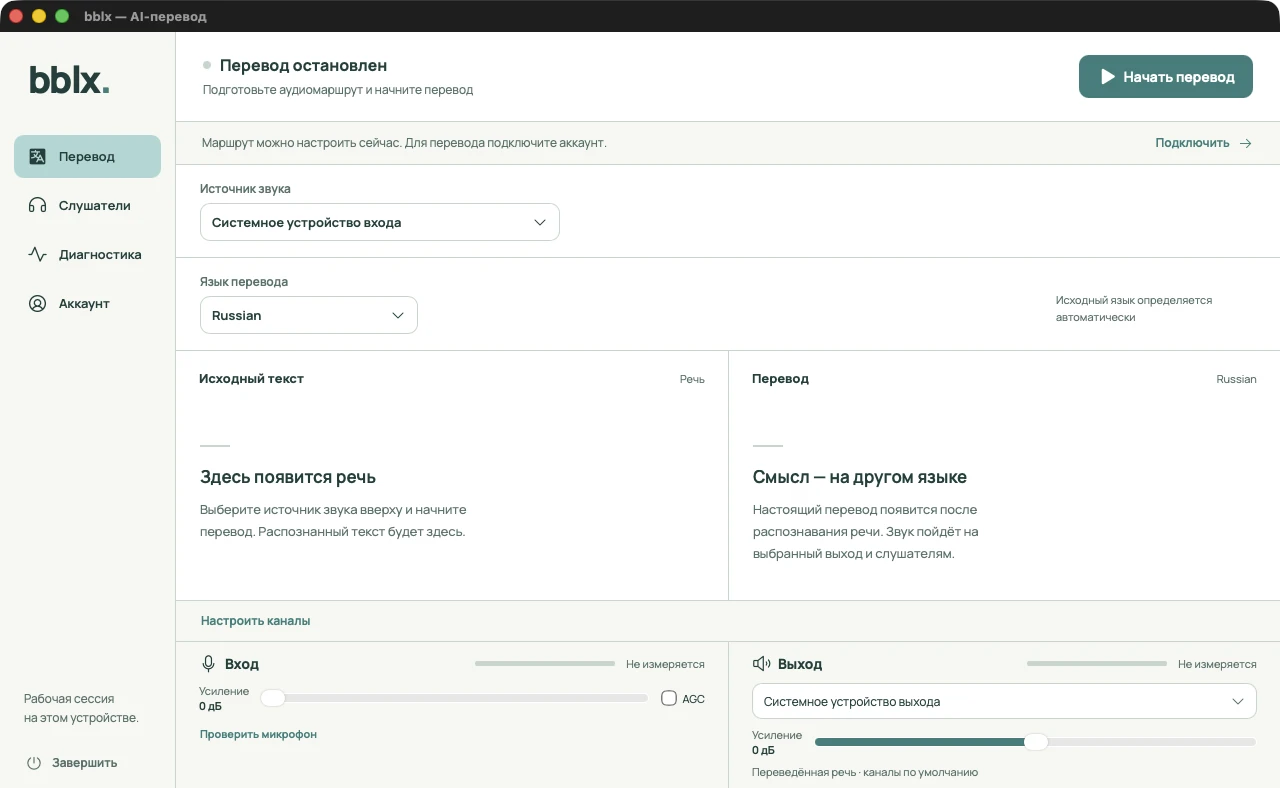
App or computer audio
On macOS 14.2 and later, the «Приложения» and «Системный звук» groups are available without a virtual driver. Select an app such as Safari, click «Проверить вход», then start playback in it. If the app is not listed, use «Выбрать другое приложение...». macOS may request separate permission to record system audio; it does not replace microphone permission.
On older macOS, system audio connects through separately configured Rogue Amoeba Loopback. BlackHole is not a supported route. On Windows, choose an audio input available in the app or a supported loopback device; the macOS app list is not used there.
Output and local check
Choose an output device in the mixer and check its volume. Start with headphones: speakers near a microphone feed translation back into the input and create echo. Do not route translation output back into the same mixer channel.
Routing changes are saved immediately. Before starting, use «Проверить микрофон» or «Проверить вход»: the meter should respond to speech. Finish the check, then separately click «Начать перевод». If a device disconnects, reconnect it or explicitly choose another— the app must not guess a replacement. AI translation requires internet; the local network only delivers finished audio to listeners.
Screenshots show the Russian-language app interface